How to add a QR code to your design
QR codes are a useful way to have people easily visit a website. Here's how to add one to your product:
For Desktop
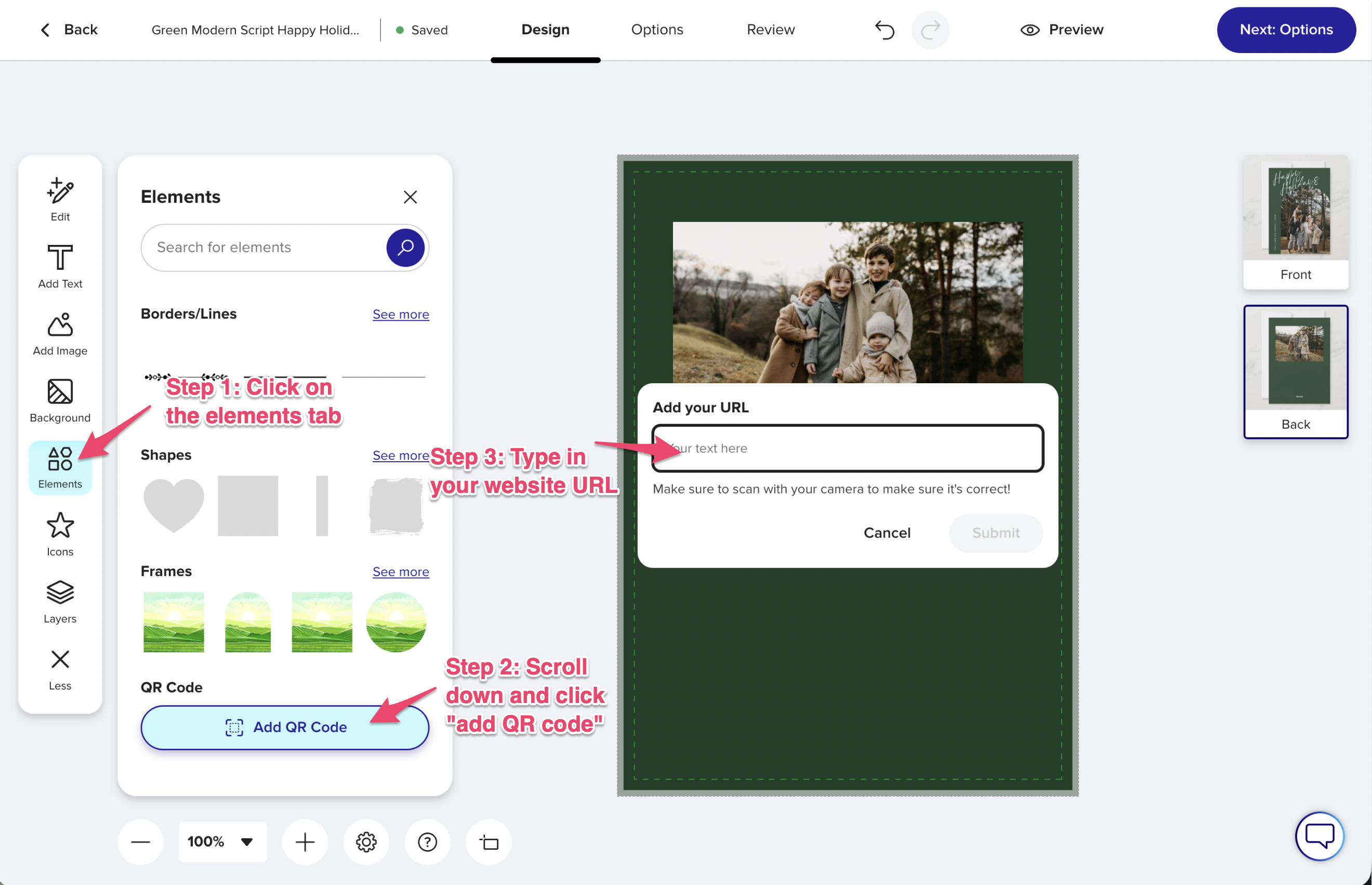
1. On the product page click on the "personalise this design" button or "Edit Design" to enter the design tool, then click on the Elements tab on the left menu
2. Scroll down until you see "Add QR Code" and click the button.
3. Type in the URL you'd like the code to go to.
4. Then click OK.
5. Test out your QR code by scanning it with your phone before you order.
For Mobile
1. On the product page click on the blue "personalise this design" button, scroll down and click on "Edit using Design Tool" or if there's no "personalise this design" button then "Edit Design"
2. Tap on Add
3. Tap on the Elements tab
3. Type in the URL you'd like the code to go to.
4. Then tap apply.
5. Test out your QR code by scanning it with your phone before you order.